Guide to automatic Google Form filling
From a Google Form link to the last response sent: set up the form, choose how each question is answered, preview, pick a speed and track progress.
Before you start
- A signed-in The Light Data account with enough credits (see Pricing).
- A public Google Form that doesn’t require a Google sign-in and has no file-upload questions.
- You own the form or have the owner’s permission to work with it.
Step 1 — Set up the Google Form
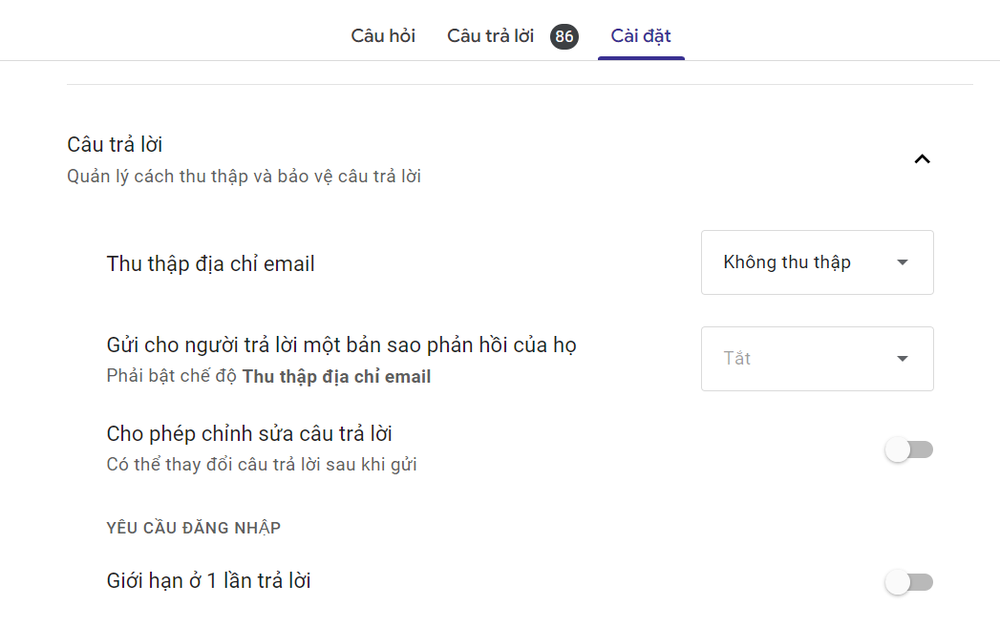
Open the form in edit mode → Settings tab → Responses section, then change three settings:
- Set “Collect email addresses” to Do not collect.
- Turn off “Allow response editing”.
- Turn off “Limit to 1 response” (under Requires sign in).
Step 2 — Load the form into the tool
Go to the Form filling page, paste the …/viewform link into the “Paste Google Form URL” box and click Load form. The tool reads every question, option, required question and section (including “Go to section…” branching).
Step 3 — Choose how each question is answered
| Mode | Use it for | How it works |
|---|---|---|
| Count | Multiple choice, dropdown, linear scale, checkboxes | Enter the number of responses for each option (the total should equal N). For checkboxes, each box is picked independently, from 0 to N. |
| Excel text | Short answer, paragraph | Takes answers from the “Text” Excel file, one response per row. |
| Excel Likert | Multiple-choice grid, rating scales | Takes scores from the “Likert” Excel file. |
| Fixed | Questions that need the same value | Every response uses the value you enter. |
| Random | Questions whose distribution doesn’t matter | Picks one of the options at random. |
| Leave blank | Optional questions | Leaves the question empty. |
Fill everything from Excel
Already have all your data in a spreadsheet? In the Batch panel, click Download full template, paste your data from row 3 (one response per row) and click Load data — the full file replaces the mode of every question.
Step 4 — Set the sample size and speed
In the Batch panel, enter the Sample size N (up to 20,000 responses per run) and choose a speed:
| Speed | Gap between two submissions |
|---|---|
| Fast | about 5 seconds / form |
| Normal | about 30 seconds / form |
| Slow | about 5 minutes / form |
| Human-like | spread at random across time slots over 1–30 days |
Click Preview to check the first few responses before you run. If you’ll reuse the setup for the next round, click Save template; Export JSON saves a copy of the configuration.
Step 5 — Send and track
- Click Send N responses. The system shows the estimated cost and holds the matching credits.
- The Send status panel shows successes, errors and the log in real time. The job runs on the server: you can close the browser and come back later.
- Click Stop at any time — only successful submissions are charged.
- The Send history page keeps the stats, the planned schedule (spread-over-days mode) and every submission of every run.
Video walkthrough
Loading data and sending in bulk (in Vietnamese) (YouTube)
Important notes
Use it responsibly
Only work with forms you own or have permission to use, and follow Google’s terms and your institution’s research-integrity rules. Don’t use automated responses to impersonate real survey participants.
Why do I get an error when I click Load form?
Check that the link looks like docs.google.com/forms/…/viewform, that the form is accepting responses and that it doesn’t require a Google sign-in.
Can I run several jobs at once?
Each account runs one job at a time. Wait for the current job to finish, or stop it, before you send a new batch.
Does it follow the right branch in a multi-section form?
Yes. Each response picks its answers and then goes to the section those answers lead to, with a record of the sections it passed through.